
Unlock your Anet A8: Comprehensive software download guide
Known for being affordable and easy to hack, the Anet A8 remains a popular entry point into the 3D printing world. While assembling the hardware is an important step, installing and configuring the right software is key to unlocking its true potential. This guide isn’t just about finding links; This is a roadmap for turning the Anet A8 into a reliable creative tool, covering firmware, slicers and basic utilities. Let’s take a closer look.
Understand the software ecosystem
Think of your Anet A8 as a powerful tool in need of guidance. Its software ecosystem consists of three key layers:
- firmware: This is the printer’s operating system, located directly on its control board (like Anet V1.0). It controls motors, heaters, interprets commands, and manages core printer behavior. Marlin firmware Definitely the standard choice for Anet A8, offering stability, advanced features (with configuration) and an active community.
- Slicing software (slicer): This converts your 3D model files (STL, OBJ) into a language your printer understands – G-code. Slicers define everything about a print job: layer height, print speed, infill density, support generation and temperature settings. Popular options include Ultimaker Cura, PrusaSlicer, Simplify3D and Creality Slicer.
- Host software/printer control utility: Although optional for basic SD card printing, these programs allow direct computer-to-printer communication. They enable real-time control (motion, temperature regulation), monitor progress and send G-code commands for calibration or troubleshooting. Examples include Pronterface (Printrun), Repetier-Host and OctoPrint (running on Raspberry Pi).
Step-by-Step: Firmware Download and Installation
Why update firmware?
Factory firmware often lacks critical safety features (thermal runaway protection!) and limits functionality. Upgrading to Marlin significantly improves security, reliability, print quality and unlocks customization capabilities.
-
Gather your tools:
- Arduino IDE: Download and install the latest version from the Arduino official website.
- Marlin firmware source code:
- Highly recommended: Setup is even easier with the Anet A8 dedicated version. Find the latest trusted version from a community repository (GitHub), e.g. "Marlin by Anet A8". Search specifically for a version that supports your specific board (for example, Anet V1.0). Be sure to double check the download source!
- USB cable (A to B): Standard printer connection cable.
- USBasp Programmer (for flashing): if the bootloader needs to be updated (common with older A8s). Buy a genuine one.
- Soldering iron (if needed): Some initial board versions require slight modifications, such as adding capacitors/resistors or soldering pins for flashing.
-
Preparation (safety first!):
- Disconnect all electrical connections from the printer motherboard (especially stepper motors and heating elements).
- Prepare a static-free work area.
- Absolutely necessary: Install the drivers for USBASP (if using) and the Anet board (usually shown as the CH340 driver) in Device Manager.
-
Configure and compile Marlin:
- Unzip the downloaded Marlin source code.
- Open
Marlin.inofiles in the Arduino IDE. - Navigate to
Configuration.handConfiguration_adv.hdocument. You can customize the settings of your Anet A8 here:- Define motherboard (
BOARD_ANET_V1_0). - Set thermistor type (
#define TEMP_SENSOR_0,TEMP_SENSOR_BED). - Achieve critical security:
#define THERMAL_PROTECTION_HOTENDS,THERMAL_PROTECTION_BED,THERMAL_PROTECTION_HOTENDS,THERMAL_PROTECTION_BED. - Configure pins, stepper drives, bed dimensions, Z-axis stops.
- Define motherboard (
- Key Tips: Use the Anet-specific Marlin package or the configuration examples provided in the Trusted Communities Guide as a template. Check each setting carefully.
- Click "Verify" (check mark) No errors will occur when compiling in Arduino IDE. Resolve any errors that occur.
-
Upload (refresh) firmware:
- Only connect the USBasp programmer to the ICSP header of the printer board (if a bootloader update is required) or directly to the printer via USB cable (if flashing via USB).
- In Arduino IDE:
- Choose the right motherboard: "Arduino/Genuino Mega or Mega 2560".
- Select processor: "ATmega2560".
- Select the correct port (COM port assigned to the printer or USBasp).
- For bootloader flashing: select programmer: "USBASP"Then "Burning the bootloader".
- Firmware upload: click "upload" (arrow).
- Waiting for confirmation ("Upload completed"). Carefully disconnect the cable.
- Post-flash settings:
- Reassemble all electronics onto the motherboard correctly.
- Reconnect power and USB.
- Verify the settings on the printer’s LCD menu (Statistics > Information menu, PID adjustment for hot end/bed).
Choose and set up your slicer
- Choose your slicer: Cura and PrusaSlicer are excellent free options. Download directly from their official website.
- Add Anet A8 printer profile:
- During first startup ("Add printer"), add the printer manually.
- Name: For example, "Arnett A8".
- Build volume: approx.
220 x 220 x 240 mm(Verify your specific setup). - choose "Customized FFF printer".
- Configure machine settings (vital!):
- Printer settings tab:
- Bed shape: rectangular.
- Heated Bed: Yes.
- G-code flavors: marlin.
- Firmware: Usually required
Auto (M105)Temperature report. - Extruder: 1 set, diameter: generally 0.4mm. Don’t change unless modified.
- Nozzle Settings: X/Y/Z position relative to bed (usually based on center:
110,110,0offset). Verify the home position. - Initiate G-Code: Critical for automatic leveling (if installed) or manual bed leveling sequence. (Common sequences are easily found online).
- End G code: Commands to retract filament, cool hot end/bed, move bed forward, disable stepper.
- Material settings tab: Define printing and bed temperature profiles for filaments (PLA, ABS, PETG, etc.). Start with common defaults (e.g., PLA: 200°C hot end, 50-60°C bed).
- Print settings tab: Configure layers (height, width), speed, padding, support, adhesion (edge/raft), cooling. Start with the material’s default profile and then refine it.
- Printer settings tab:
Printer control utility
- Pron interface/pass:
- Download: Available via GitHub or third-party packaged installers. Easy to set up.
- Usage: Select the correct COM port and baud rate (usually 115200). Connected to control axis motion (
X, Y, Z, E), set temperature, extrude/retract filament, send manual G-code and perform calibration procedures (such as PID adjustment, mesh bed leveling).
- Chapter map printing:
- Installed on a Raspberry Pi connected to the printer via USB. Offers remote monitoring, control (via web interface), time-lapse recording, and an extensive plug-in ecosystem. Highly recommended, convenient and advanced management.
- Setup: Follow the official OctoPi image instructions.
Print your first model
- Leveling the bed: This is non-negotiable. Use the printer menu option or Pronterface/Z Home.
- Load filament: Preheat extruder temperature via menu/manual control (
M104 S[temp]), manually insert the filament until it is slightly squeezed out. - Slice your model: In the Slicer, import the STL file, adjust settings as needed (e.g. increase layer height for speed, add supports), slice it (generate
.gcodedocument). - Transmitting G-code: copy
.gcodeFile to the printer’s MicroSD card or establish a connection via your choice of host software/OctoPrint and send the file directly. - Start printing: Select the file through the printer LCD menu or directly in the host software. Closely monitor the critical first layer!
Troubleshooting common software-related issues
- Printing does not start: Check connection (USB/SD card), G-code file name compatibility (short, no spaces), make sure temperature is reached. Verify that the firmware was successfully flashed.
- Communication error: Reinstall the CH340 driver, try a different USB cable/port, make sure the correct COM port and baud rate are selected in the host software.
- Alert/error codes: Consult online for Marlin error codes (for example, MINTEMP, MAXTEMP usually indicate a thermistor wiring error). Thermal runaway errors indicate that firmware security features are activating – diagnose thermal issues immediately.
- Unexpected printer behavior/settings: Double check the firmware configuration settings (
Configuration.h) Verify that the slicer settings are correct for your hardware. - Weak layer/layer movement: Calibration steps (
M92 E[steps],M500), PID tuning (M303command) to ensure the bed is properly leveled within the slicer settings.
in conclusion
Mastering the software environment unlocks the Anet A8’s versatility. Install reliable Marlin firmware to enhance security and enable advanced features. Configure slicers to precisely bridge the gap between digital models and physical objects. Leverage control software to provide deeper insights and adjustments. While Anet A8 requires some technology investment, the knowledge gained is priceless.
While the Anet A8 is great for hobbyists and makers, it doesn’t operate in the same way as industrial-grade additive manufacturing. When your project requires Precision engineered metal parts require certified mechanical properties, impeccable surface finish or tight dimensional tolerancesthe transition to professional rapid prototyping services becomes critical.
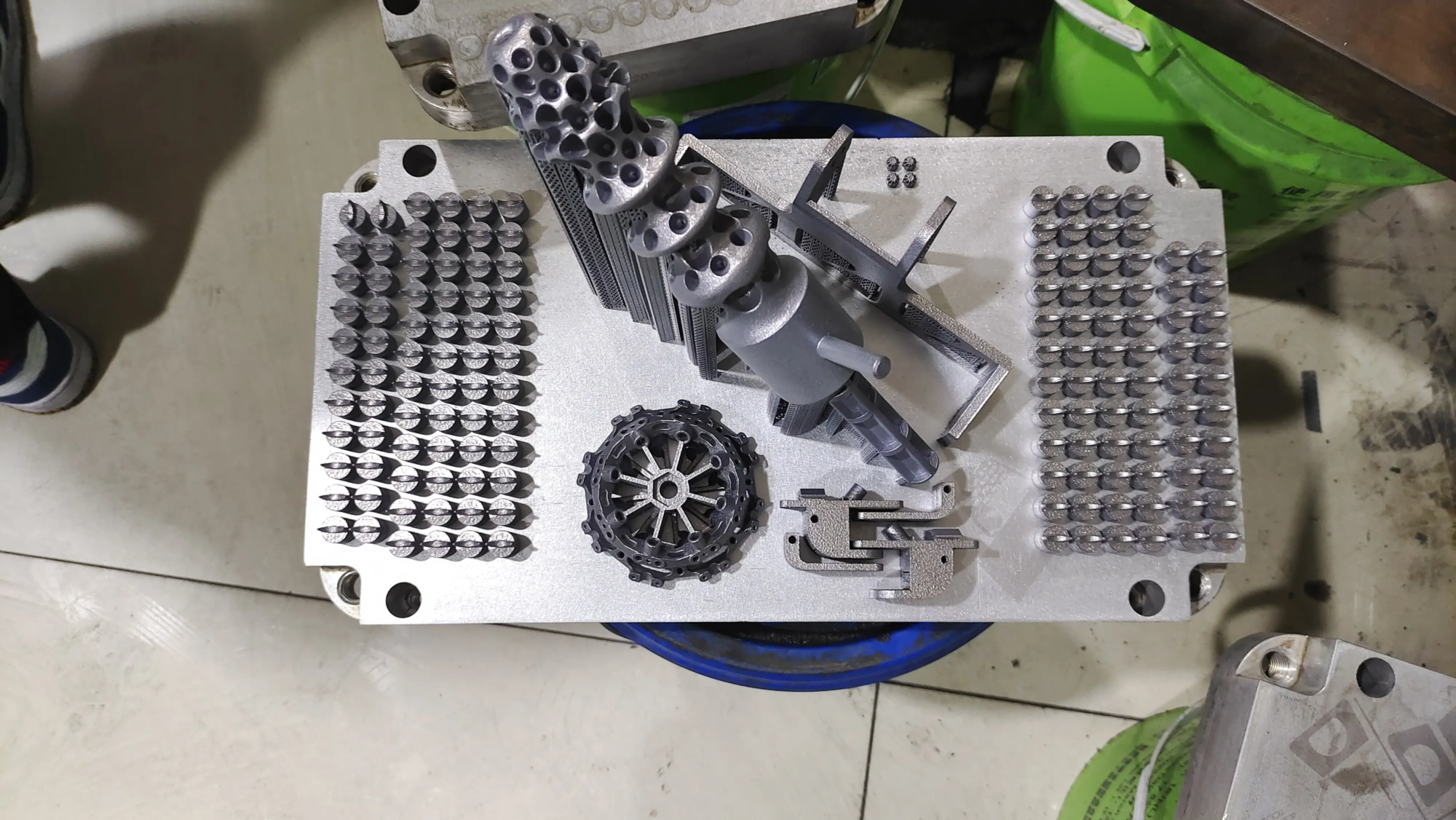
This is where expertise comes in, e.g. huge light Sparkling. As experts in metal additive manufacturing using advanced selective laser melting (SLM) technology and comprehensive post-processing capabilities, GreatLight provides a true end-to-end solution. Imagine working with a team with deep materials science knowledge, state-of-the-art machinery, and stringent quality control processes to meet stringent industrial standards. Whether you need titanium aerospace parts, biocompatible implants, complex heat exchangers or rugged automotive tools, GreatLight specializes in rapid metal prototyping and custom precision