
Getting Started with Anycubic Mega S: A Beginner’s Guide
So, you’ve just unpacked your Anycubic Mega S 3D Printer – congratulations! This workhorse FDM (fused deposition modeling) machine is a favorite among hobbyists and prototyping enthusiasts alike for its sturdy frame, intuitive design, and affordability. In this guide, we’ll walk you through setup, calibration, troubleshooting, and tips to help you go from novice to confident user.
Unboxing and initial setup
-
What’s inside the box?
- The Mega S comes pre-assembled—no need to tighten straps or align shafts! Key components include:
- The printer body comes pre-installed with the hot end and print platform board
- Filament spool holder
- Tool kit (wrenches, screws)
- power supply
- USB cable and SD card
- Starting PLA filament sample.
- The Mega S comes pre-assembled—no need to tighten straps or align shafts! Key components include:
- Assembly basics
- Step 1: Attach the filament holder to the printer frame.
- Step 2: Attach the print bed handle using the supplied screws.
- Step 3: Make sure the build plate is clean. Use isopropyl alcohol to wipe textured surfaces.
- Step 4: Plug the printer into a grounded outlet and turn on the power.
First Calibration: Determining the Level of the Bed
Bed adhesion problems plague 90% of beginners printing. Mega S use Manual leveling bedbut its accuracy compensates for the workload.
- Automatic homing: below Preparation > Autohomethe print head moves to the origin.
- paper test: Use printing paper! Slide it under the nozzle at each leveling knob (front left, front right, rear left, rear right). Adjust each knob until you feel slight resistance as it slides through the paper.
- For tips: Heat the bed to 60°C before leveling – metal expands when heated!
your first print
-
Prepare model:
- use treat (Free and compatible with Anycubic) Slice STL files. Recommended settings:
- Floor height:0.2mm
- Printing speed:50mm/sec
- bed temperature: PLA at 60°C
- hot end temperature:PLA at 200°C
- use treat (Free and compatible with Anycubic) Slice STL files. Recommended settings:
- Start printing:
- Save slice file to SD card and select Print from SD on the printer.
- don’t leave! Watch the first floor. If the filament doesn’t stick, pause and level again.
Routine maintenance
Keep your Mega S humming:
- weekly: Clean the nozzle with an acupuncture needle to prevent clogging.
- per month: Use PTFE grease to lubricate the Z-axis screw.
- Filament changes: Always unload the filament Preparation > Unload filament to avoid clogging.
FAQ Troubleshooting
| question | make fixed |
|---|---|
| Filament clogged | Heat the hot end to 220°C and extrude the filament by hand Preparation > Moving Axis. |
| warped corner | Apply glue stick to bed or increase bed temperature by 5°C. |
| Layer transformation | Tighten the X/Y belt tension; avoid bumping the printer during printing. |
| Threading | Reduces hot end temperature by 5–10°C; capable of retracting at 6mm speed/25mm/sec. |
Why choose Mega S for prototyping?
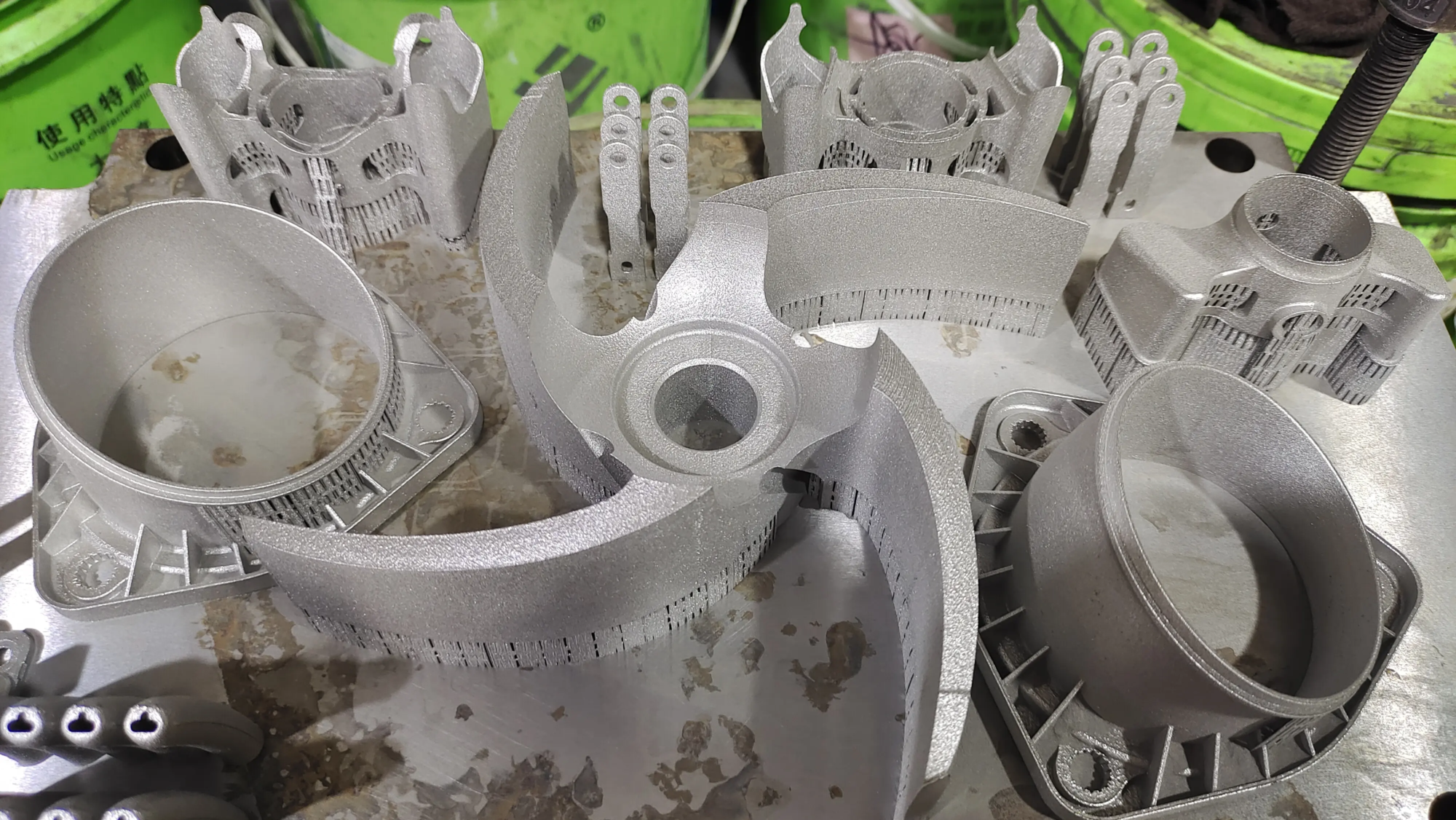
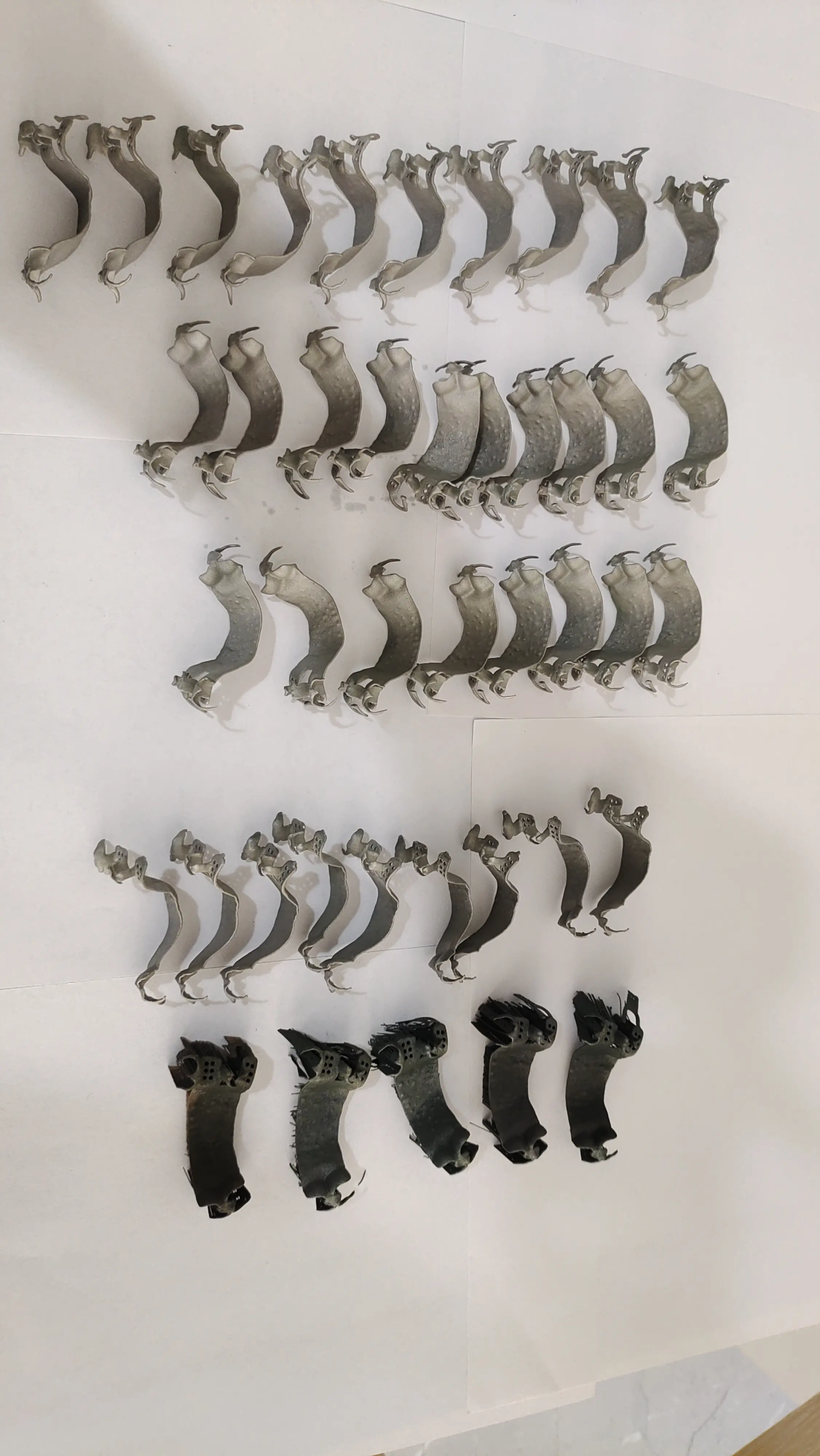
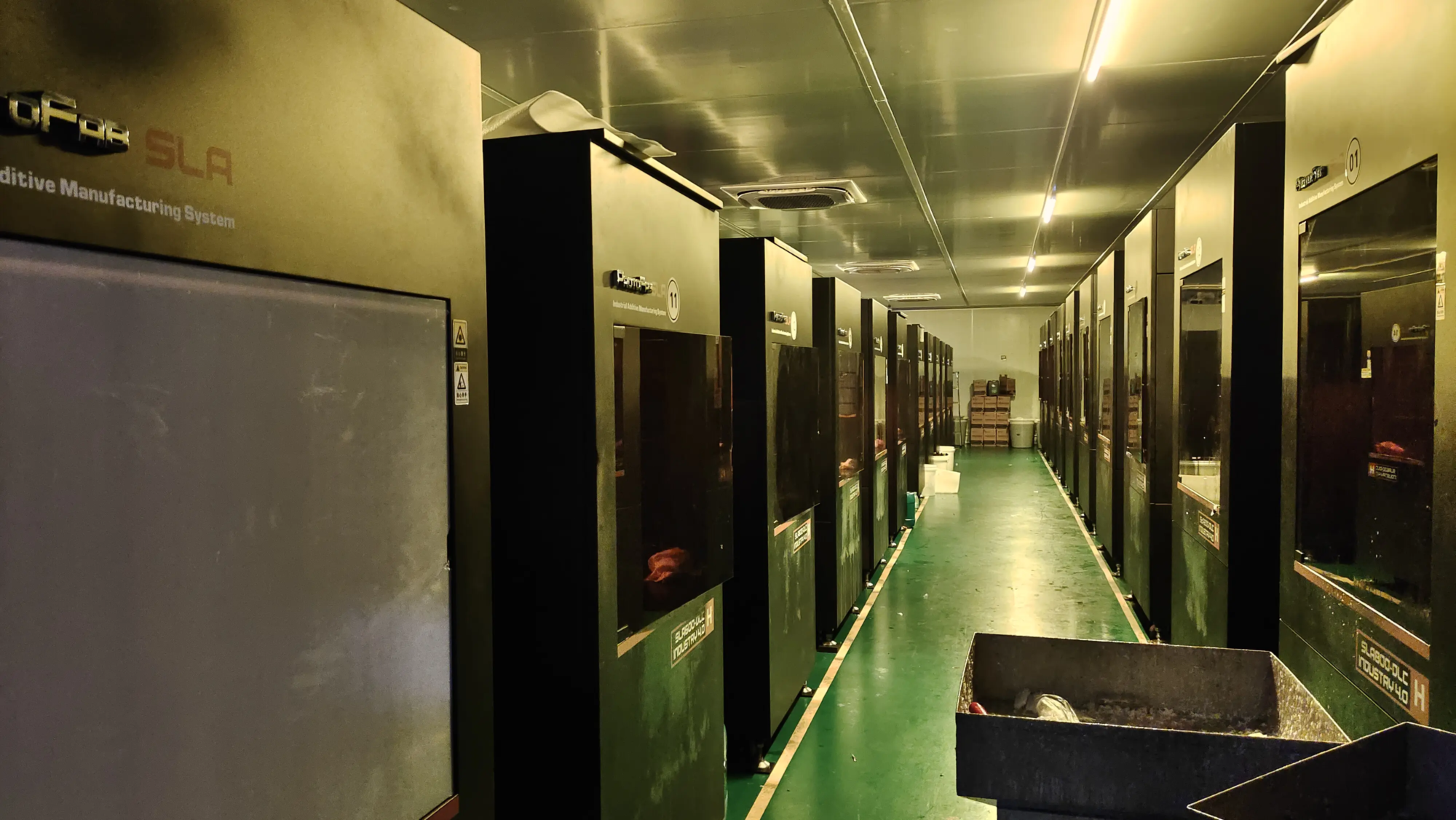
exist huge lightwe use industrial-grade SLM printers to print metal parts, but the Mega S embodies what makes FDM prototyping a game-changer:
- ✅ Rapid design iteration: Testing the concept overnight.
- ✅ Material flexibility: PLA, PETG, TPU, and even composite materials.
- ✅ Low cost verification: Uncover defects before high-end metal fabrication occurs.
For complex geometries requiring metal (aluminium, titanium, stainless steel) or precision tolerances <±0.05mm, outsourcing to a professional service like ours can simplify production. But what about garage-based R&D? The Mega S is unbeatable.
Conclusion: Is the Anycubic Mega S worth it?
Absolutely. Once you master bed leveling (its steepest learning curve), the Mega S becomes a reliable and easy-to-use machine for beginners and makers. We recommend it as a stepping stone for designers/founders who iterate quickly using rapid prototyping. When your project scales or you need metal alloys? that’s there huge light Steps include: industrial 3D printing, finishing services, and unparalleled expertise in turning prototypes into production-grade parts.
FAQ
Q: Can Mega S print ABS?
Answer: Yes, but ABS requires a shell to prevent deformation. Recommended upgrade: Flexible magnetic bed and housing kit.
Q: Why is my bed uneven after leveling?
A: Springs weaken over time! Replace the stock springs with stiffer silicone gaskets (cheap fix).
Q: How loud is the Mega S?
A: The noise of stepper motors can reach 50dB – which is enough for a garage. The silent stepper driver (TMC2208) can be easily retrofitted.
Q: What is the maximum print size?
A: 210 x 210 x 205mm, ideal for handheld prototypes or small components.
Q: Does printing require a computer?
Answer: Not after slicing! Print directly from SD card.
Q: When should I transition from DIY printing to professional prototyping?
A: When accuracy, thin walls (<0.5mm), mold cores, metal or mass production are important. Services such as huge light Addressing these gaps through proven processes – although we love supporting grassroots makers with tools like Mega S!
Ready to prototype? Grab your Mega S tweezers and put them to use. For professional-grade metal prototyping, Contact Gretel For DC machining, surface polishing and SLM optimization. No matter which path you choose, the success of your idea starts with the first printed layer 😊.