
Unlocking Creativity: Your DA Vinci Jr.’s Comprehensive Guide 1.0 3D Printer
So you have obtained Da Vinci Jr. 1.0 – a portal to the fascinating world of desktop 3D printing! As one of the popular entry-level models of Xyzprinting, Da Vinci Jr. 1.0 provides a simplified approach to transforming digital design into tangible objects. Although known for its user-friendliness, mastering any tool can unlock its true potential. This detailed user guide walks you through basic setup, operations, and troubleshooting, giving you the ability to print with confidence and precisely.
First impression and initial settings:
- Unboxing: Carefully turn on the printer and check the inventory list (printer unit, filament box holder, power supply, USB cable, starter filament cartridge (if included), scraper, user manual, and potential sample printing).
- The perfect place: Place the printer on a strong, horizontal surface away from direct sunlight, heat sources, drafts and vibrations. Ensure good ventilation, especially during longer printing. Leave sufficient clearance (at least 20 cm) behind and above the printer for movement and filament loading.
- Installation wire (Essez): Da Vinci Jr. 1.0 mainly uses Xyzprinting’s proprietary ABS or PLA cartridges (usually with NFC chips, which are easy).
- Open the top cover.
- Lift up the filament bracket arm and place the cartridge on the bracket. Make sure it clicks firmly into place.
- Push your arm firmly down until you click again, piercing the cartridge.
- Carefully feed the ends of the filament into the filament guide. On startup, the printer will usually feed it automatically to the extruder.
- Power and connection: Connect the power supply to the printer and wall outlet. Use the power button to turn on the printer.
- Initial calibration (critical!): Proper calibration is essential for good bed adhesion and print quality.
- Navigate LCD menu: "maintain" > "calibration".
- Follow the on-screen prompts carefully. This usually involves the printer probing the bed at several points to establish its level. Using the provided small calibration card or provided scale meter is essential for setting the correct z-gap between the nozzle and the bed.
- hint: Take some time here. Incorrect first layer height is the root cause of many failed printing. If you suspect a problem in the future, please do it again.
Software and Printing:
-
xyzware film: Da Vinci Jr. 1.0 uses Xyzprinting’s proprietary slicing software XYZWare.
- Download and install the latest version from XYZPrinting’s official website.
- Key settings in xyzware:
- Model import: Load your .stl or .obj file.
- Printer selection: make sure "Da Vinci Jr. 1.0" choose.
- Material: Select the loaded material type (ABS or PLA).
- Quality (layer height): Lower heights (e.g. 0.1mm) produce more detail, but take longer; higher heights (e.g. 0.2mm, 0.3mm) are faster but rougher.
- Fill density: Adjust internal solids. The percentage of decorations is relatively low (10-20%); the functional parts requiring strength are higher (50-100%).
- support: Enable overhangs exceeding approximately. 45 degrees. XYZWare provides a basic support structure.
- Platform adhesion: Edges or rafts greatly help ABS adhere and prevent warping (strongly recommended).
- Slice and transfer: After configuring the settings, click "piece" Process the model. Then either save the sliced file (.3W) to the SD card or connect the printer via USB and click "Print" Start directly.
-
Printing process:
- On the printer’s LCD menu, navigate to "Print a file" (If using an SD card) or make sure the USB connection is active.
- Select your .3W file and start printing.
- Monitoring the first layer: This is very important! Watch carefully to ensure that the filament adheres smoothly and evenly without gaps or dragging.
- Avoid hitting the printer during printing. You can observe progress, but unnecessary interference can cause layer movement.
- Finished product printing:
- Once finished, let the print bed and model cool significantly, especially with ABS (contract when cooling).
- Carefully remove the build board (design for this!).
- Use the provided scraper Gently Pry open the model on the bed. Be patient to avoid damaging prints or building surfaces.
- Remove any support structure.
Maintenance is the key to longevity:
- Nozzle cleaning: Plastic residues can accumulate inside and outside the nozzle.
- Cold lager: Using the nozzle of the printing temperature of the print material, manually push the filament through the filament through the XYZware software. Rinse it off. Reduce the cool nozzle to ~90°C, wait for 1 minute, and then quickly restore the filaments through the extruder gear while maintaining tension. The plastic plug should pull out the debris.
- Brush cleaning: Only when the nozzle cools! Use a filament brush to gently clean external residues. Be very careful not to bend the fragile nozzle tip.
- Needle cleaning: Use the provided fine needle to carefully remove the clog from the nozzle orifice (cold nozzle!).
- Establishing a sectional care: Wipe the build plate regularly with isopropanol to remove grease and improve adhesion. Avoid scratches. If damaged or excessively distorted, replace it.
- Frames and rails: Check regularly for screws to be tightened (not too high) and drop dust on the rails and screws. It may eventually be necessary to apply lightweight applications of PTFE-based lubricants on the Z-axis screws (please consult the manual).
- Filigree storage: Store unused filamentous ink cartridges in a cool and dry place and seal with a desiccant to prevent moisture absorption (causing bubbles, poor printing). Xyzprinting cartridges help to resolve this issue.
Solve FAQs:
- Thin filaments are not fed/loaded: Make sure the cartridge sits correctly and pierces. Check for any entanglement or blockage in the filament path. Check the extruder gear for debris/grinding.
- Clog nozzle: Do a cold pull, clean the needle or check out the advanced unzip guide. Prevent clogging by keeping the filament dry.
- Poor bed adhesion (warped/relift corner): Recalibrate Z-Height! Thoroughly clean the build board. Increase the bed temperature (especially for ABS). Use edge/raft. Make sure there are no drafts. Consider special adhesives (hair spray, glue sticks) as the last resort.
- Serial/Emethod: Increase the retraction distance/speed (if any) in XYZWare. Reduce the printing temperature slightly. Enable Z-HOP. Make sure the filaments are dry.
- Layer Movement: Check belt tension (gent fingers should be tightened, but not too tight). Make sure the pulleys are tightened. Eliminate obstacles. Printing is slower.
- Thin filament jumper: If using XYZ filaments, the printer will usually be stopped. Load new cartridges and resume.
Conclusion: Your production portal
Little Da Vinci 1.0 remains a reliable choice for beginners and amateurs seeking plug simplicity and include a filament ecosystem. Its integrated design and proprietary software minimize setup complexity. By carefully following calibration procedures, understanding critical slicer settings such as support and adhesion aids, and promising regular maintenance (such as nozzle cleaning), you can consistently achieve satisfactory results on this accessible machine. It provides a wonderful platform for learning the core principles of FDM 3D printing: converting digital design through a layer of material extrusion.
However, each tool has its scope. Da Vinci Jr. 1.0 stands out in PLA and basic ABS for small and medium-sized hobby projects. If your ambitions are moving towards complex geometric shapes that require soluble support, functional parts that require engineering grade materials such as nylon, PET-CF or flexible TPU, exceed the resolution of ~0.1mm layer, large production volume, or parts that require a high degree of accuracy and surface effect exceed the ~0.1mm layer, then deckitions decability of Desktop fdm printers are suitable for deckitions decability of Desktop fdm printers.
Expert post-processing and prototype solutions
Here, work with professional rapid prototyping services Great Promote the project from prototype to ready. Beyond desktops, we specialize in this feature gap:
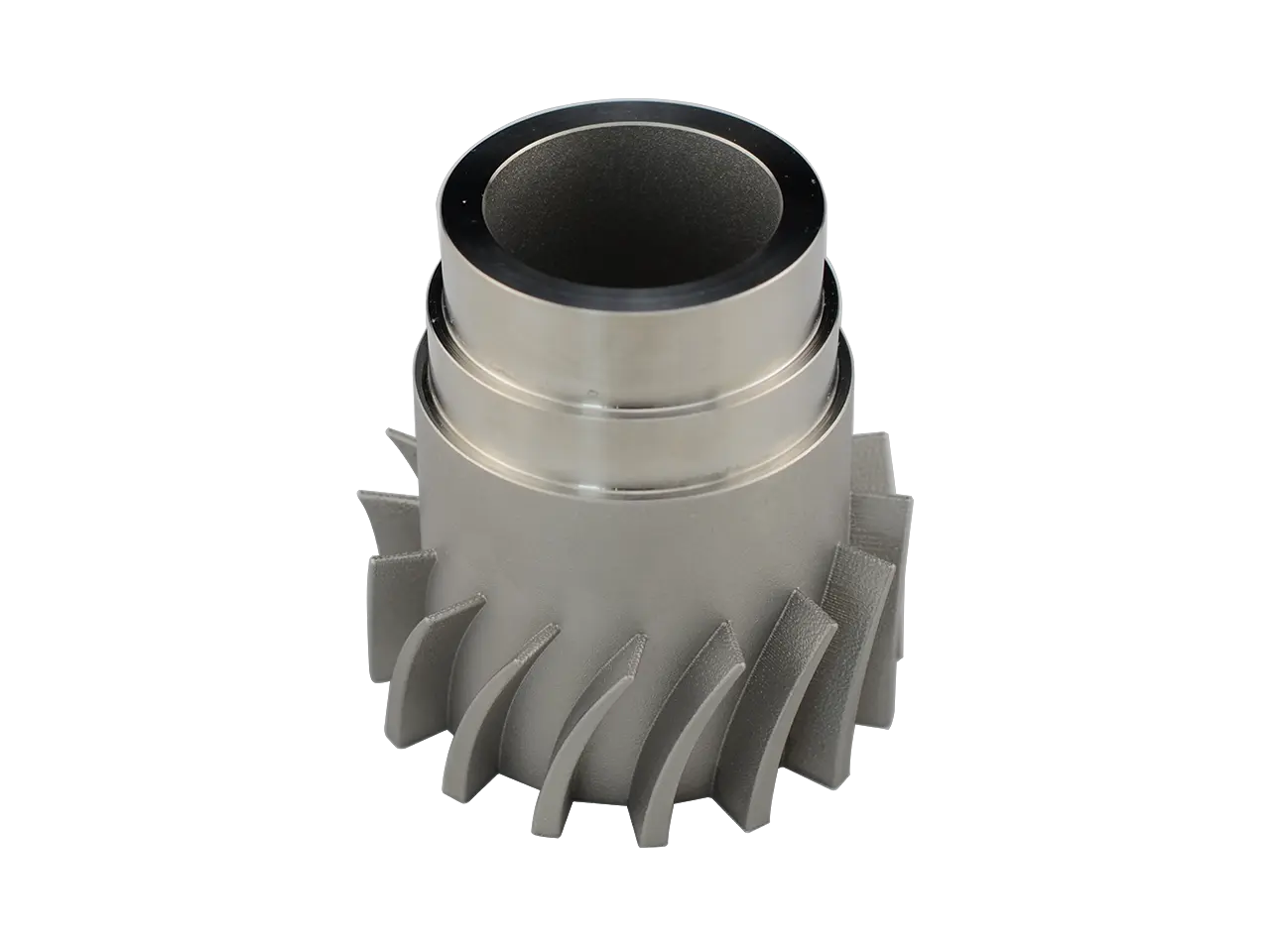
- Advanced Metal Technology: use Industrial-grade selective laser melting (SLM) Systems, we produce robust, complex metal components in alloys such as alloys, aluminum, aluminum, stainless steel, inconel and cobalt chrome plating, which are ideal for aerospace, automotive, medical and high-performance engineering applications, far beyond the reach of consumer plastics.
- Multi-process expertise: In addition to metal 3D printing, we also offer comprehensive FDM printing, a wide range of high-performance polymers (nylon, PEEK, ULTEM™) across industrial machines SLA, SLSand polyjet Unrivaled technology with resolution and material diversity.
- Seamless post-processing: Our internal features ensure your parts are ready: meticulous support disassembly, precise machining for tight tolerances, expert surface finishes (bead blasting, tumbling, polishing, painting), heat treatment, plating, assembly, assembly and rigorous quality inspection.
- One-stop customization: From a single prototype to a production run, we provide Fast and customizable Solution. Utilize our deep material knowledge and engineering expertise to select the best process and materials for your exact functional requirements and budget. Designs benefit from manufacturing (DFM) feedback to optimize your design.
- Reliable partnerships: Experience why we are considered one of China’s leading rapid prototyping experts. We combine cutting-edge technology with precise machining proprietary technology to deliver consistent high-quality parts on time.
Stop printing limitations of desktop printing. Let Greatlight empower you with innovative capabilities through professional rapid prototyping and precise completion services.
Ask your custom quote today to get today’s precision metal, plastic or multi-material parts and experience the differences in industrial grade manufacturing!
Da Vinci Jr. 1.0 FAQ
Q1: What materials can be used in Da Vinci Jr. 1.0?
A1: Mainly Xyzprinting’s proprietary PLA and NFC chip ABS cartridge. If not modified "Of course the valve core") Invalid warranty, requiring continuous filament diameter monitoring in xyzware.
Q2: Can I use a third-party/non-Xyzprinting slicer?
A2: Formal, there is no solution to slice directly through Cura/Prusaslicer without a lot of workarounds or hardware modifications. The G code generated by other slicers is not directly compatible. xyzware is a required software.
Q3: How do I fix constants "Filament detection error" information?
A3: This is common for third-party filaments or sensor sensitivity. You can try to completely disable the filament detection function completely in the printer’s maintenance menu > “Detection > Filament Off”. Be cautious because you lose your beating protection.
Q4: My prints don’t stick to the bed! What’s wrong?
A4: The most common question! Double check your Z-Height calibration – probably too high. Clean the bed thoroughly with IPA. Make sure that the bed temperature settings in XYZWare match your material (PLA: ~50-60°C, ABS: ~95-105°C). Always use a forehead line or raft for ABS or models with smaller footprints.
Q5: How to clean severe nozzles?
A5: Cold pull is the first line of defense. If it fails, you may need:
- Thermal nozzle targets temperature.
- Feed the cleaning wire carefully If there is Then there is cold lager.
- Physically remove the nozzle (if comfortable) and then soak it in acetone (for ABS) or use a specific cleaning solvent, or apply heat to the outside while pushing the cleaning line (care).
Q6: Can I print without a top cover?
A6: Yes, especially PLA is recommended as it can help reduce thermal creep. For ABS, the lid helps keep the chamber warmer to reduce distortion, but also increases the risk of thermal creep if poor ventilation is required.
Q7: My print stopped unexpectedly. Why?
A7: Check whether:
- The silky jam/beat happens.
- The power is flashing.
- Overheating triggers thermal protection.
- G code error (less common, try restarting XYZWare/printer).
Question 8: The build board seems to be distorted. Can I fix it?
A8: Slight warping is common over time. Try to recalibrate paper tests through different points. Severe warping may require replacement build boards purchased from Xyzprinting. Manually adjust the bed’s body adjustment below – If you are confident, consult the advanced guide.